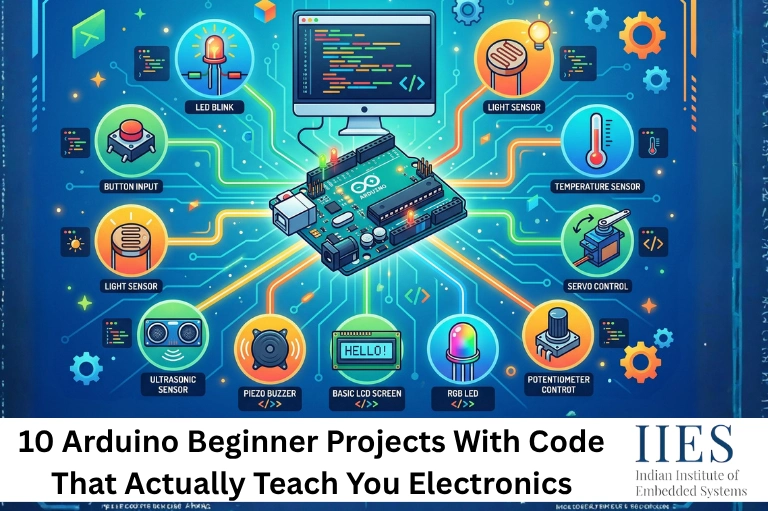
Why Arduino Beginner Projects Are the Best Starting Point for Electronics
The Arduino Uno – the go-to board for beginner microcontroller projects, runs on an ATmega328P chip, operates at 5V logic, and gives you 14 digital I/O pins plus 6 analog inputs right out of the box. You program it in a simplified C++ dialect, and the free Arduino IDE makes uploading code as easy as pressing one button.
What makes Arduino learning projects more effective than software-only programming is the immediate physical feedback. Every line of code controls something real. That connection builds intuition faster than any textbook. According to a 2023 study by the Journal of Science Education and Technology, students who learn programming through physical computing (like Arduino) show 38% better retention of programming concepts after six months compared to screen-only learners.
01 LED blink Arduino project — The “Hello World” of Electronics
Every Arduino journey begins with the LED blink Arduino project, the first and most important circuit every beginner should build. Among all easy Arduino projects, LED blink is the perfect first build because it teaches output logic clearly.
programming: the setup/loop structure and digital output control. Mastering these and every other project in this guide becomes much easier to understand.
Circuit Wiring
Connect the LED’s long leg (anode, +) to Arduino digital pin 13
Connect a 220Ω resistor in series between pin 13 and the LED anode
Connect the LED’s short leg (cathode, −) to Arduino GND
Alternative: Use the built-in LED on pin 13 — no extra components needed
Simple breadboard diagram showing Arduino Uno, 220Ω resistor, and LED wired to pin 13 and GND. Alt: “Arduino LED blink beginner project circuit diagram on breadboard”
Arduino C++ — LED Blink (Project 1)
// LED Blink — Arduino Beginner Project #1

// LED anode → 220Ω resistor → Pin 13

// LED cathode → GND

#define LED_PIN 13

void setup() {

  pinMode(LED_PIN, OUTPUT);   // Configure pin 13 as output

}

void loop() {

  digitalWrite(LED_PIN, HIGH);  // Turn LED ON (5V on pin)

  delay(1000);                  // Wait 1 second

  digitalWrite(LED_PIN, LOW);   // Turn LED OFF (0V on pin)

  delay(1000);                  // Wait 1 second

  // loop() runs forever — so the LED blinks indefinitely

}
Go further: Change both delay(1000) values to 200 for a rapid flash. Add a second LED on pin 12 and alternate them — change one to HIGH while the other is LOW and swap each cycle. That single experiment introduces multi-output control and sequencing.
Key concepts learned:
pinMode()
digitalWrite()
delay()
setup() / loop() structure
Digital output pins
#define constants

02 Push Button LED Control — Your First User Input
Moving from output to input is the first big conceptual leap in electronics. The Arduino push button project teaches you how a microcontroller reads a real-world signal and responds to it instantly. Press the button — LED on. Release — LED off. The code is simple, but the principle underpins every sensor and user interface you’ll ever build.
Circuit Wiring
One leg of push button → Arduino pin 2
Same leg of push button → 10kΩ resistor → GND (this is the pull-down resistor)
Other leg of push button → Arduino 5V
LED anode → 220Ω resistor → Arduino pin 13
LED cathode → Arduino GND
Arduino C++ — Push Button Control (Project 2)
// Push Button Project — Arduino Beginner Project #2

// Button → Pin 2 (with 10kΩ pull-down to GND)

// LED → Pin 13 through 220Ω resistor

#define BUTTON_PIN 2

#define LED_PIN    13

int buttonState = 0;

void setup() {

  pinMode(LED_PIN, OUTPUT);

  pinMode(BUTTON_PIN, INPUT);  // Read signal from button

  Serial.begin(9600);

}

void loop() {

  buttonState = digitalRead(BUTTON_PIN);

  if (buttonState == HIGH) {

    digitalWrite(LED_PIN, HIGH);

    Serial.println("Button pressed — LED ON");

  } else {

    digitalWrite(LED_PIN, LOW);

  }
The floating pin problem: Without the 10kΩ pull-down resistor, the pin floats between HIGH and LOW when the button is not pressed, picking up electrical noise. The LED flickers randomly. That single resistor to GND stabilises the reading — it’s one of the most important circuit concepts a beginner can learn hands-on.
Go further: Instead of holding the button to keep the LED on, try implementing a toggle — press once to turn the LED on, press again to turn it off. This requires tracking the previous button state and is a brilliant introduction to state machines in code.
digitalRead()
Pull-down resistors
INPUT vs OUTPUT pins
Conditional logic
Serial.println()
03 Temperature & Humidity Sensor — Reading the Real World
The Arduino temperature sensor project is the one where things start feeling genuinely useful. A DHT11 sensor measures your room’s temperature and humidity, displaying live readings in the Serial Monitor. This project also introduces external libraries — a critical real-world skill you’ll use in almost every project from here onwards.
DHT11 Data → Pin 2
Circuit Wiring (DHT11 — 3 or 4 pin module)
DHT11 VCC → Arduino 5V
DHT11 GND → Arduino GND
DHT11 DATA → Arduino digital pin 2
10kΩ pull-up resistor between DATA pin and VCC (some modules include this — check your module)
Before uploading: Open Arduino IDE → Sketch → Include Library → Manage Libraries → search “DHT sensor library” by Adafruit → Install. Also install Adafruit Unified Sensor when prompted.
Arduino C++ — DHT11
Temperature & Humidity (Project 3)
// Temperature Sensor Project — Arduino Beginner Project #3

// Requires: DHT sensor library by Adafruit

#include

#define DHTPIN  2

#define DHTTYPE DHT11  // Use DHT22 for higher accuracy

DHT dht(DHTPIN, DHTTYPE);

void setup() {

  Serial.begin(9600);

  dht.begin();

  Serial.println("DHT11 Temperature Sensor Ready");

  Serial.println("================================");

}

void loop() {

  delay(2000);  // DHT11 needs 2 sec between readings

  float humidity    = dht.readHumidity();

  float tempC       = dht.readTemperature();

  float tempF       = dht.readTemperature(true); // true = Fahrenheit

  if (isnan(humidity) || isnan(tempC)) {

    Serial.println("ERROR: Sensor read failed. Check wiring!");

    return;

  }

  Serial.print("Temperature : ");

  Serial.print(tempC);

  Serial.print(" °C  |  ");

  Serial.print(tempF);

  Serial.println(" °F");

  Serial.print("Humidity    : ");

  Serial.print(humidity);

  Serial.println(" %");

  Serial.println("---");

}
DHT11 vs DHT22: DHT11 gives ±2°C accuracy and costs ~₹70. The DHT22 offers ±0.5°C accuracy for ~₹160. The code is identical — change DHT11 to DHT22 on one line. For science projects or weather stations, DHT22 is worth the upgrade.
External libraries
Sensor interfacing
float variables
isnan() error checking
Serial Monitor output
04 Traffic Light System — Sequencing & Timing Logic
Three LEDs, three pins, and a timing sequence — the traffic light is one of the most satisfying Arduino projects for students because the result is immediately recognisable. More importantly, it teaches you how to coordinate multiple outputs and think about your program as a state machine: a system that moves through defined states in order.
Red→4, Yellow→3, Green→2
Circuit Wiring
Red LED anode → 220Ω resistor → Arduino pin 4
Yellow LED anode → 220Ω resistor → Arduino pin 3
Green LED anode → 220Ω resistor → Arduino pin 2
All LED cathodes → Arduino GND (use the same GND rail on breadboard)
Arduino C++ — Traffic Light System (Project 4)
// Traffic Light System — Arduino Beginner Project #4

// Red=pin4, Yellow=pin3, Green=pin2

#define RED_PIN    4

#define YELLOW_PIN 3

#define GREEN_PIN  2

void setup() {

  pinMode(RED_PIN,    OUTPUT);

  pinMode(YELLOW_PIN, OUTPUT);

  pinMode(GREEN_PIN,  OUTPUT);

}

void allOff() {

  digitalWrite(RED_PIN,    LOW);

  digitalWrite(YELLOW_PIN, LOW);

  digitalWrite(GREEN_PIN,  LOW);

}

void loop() {

  // --- RED phase: Stop ---

  allOff();

  digitalWrite(RED_PIN, HIGH);

  delay(4000);         // Red stays on for 4 seconds

  // --- RED + YELLOW: Prepare to go ---

  digitalWrite(YELLOW_PIN, HIGH);

  delay(1000);

  // --- GREEN phase: Go ---

  allOff();

  digitalWrite(GREEN_PIN, HIGH);

  delay(4000);         // Green stays on for 4 seconds

  // --- YELLOW phase: Prepare to stop ---

  allOff();

  digitalWrite(YELLOW_PIN, HIGH);

  delay(2000);

}
Go further: Add a second set of LEDs on pins 5, 6, 7 to simulate a pedestrian crossing light running in opposition to the traffic light. When traffic is green, pedestrians are red — and vice versa. This is a real engineering problem and teaches you how to synchronise two independent state sequences.
Multiple outputs
State machine thinking
Custom helper functions
Timing sequences
05 Ultrasonic Distance Sensor — Measuring Your World with Sound
The HC-SR04 ultrasonic sensor sends out a burst of sound and measures how long it takes to bounce back, exactly how bats navigate in the dark. Distance measurement is one of the most useful Arduino projects for students, especially for robotics and obstacle detection ideas, and the end result is a working proximity detector you can repurpose for robotics, parking sensors, or level measurement.
TRIG→Pin 9, ECHO→Pin 10
Circuit Wiring (HC-SR04)
HC-SR04 VCC → Arduino 5V
HC-SR04 GND → Arduino GND
HC-SR04 TRIG → Arduino digital pin 9
HC-SR04 ECHO → Arduino digital pin 10
No resistors needed — the module has onboard regulation
Arduino C++ — HC-SR04 Distance Meter (Project 5)
// Ultrasonic Distance Sensor — Arduino Beginner Project #5

// HC-SR04: TRIG → pin 9, ECHO → pin 10

#define TRIG_PIN  9

#define ECHO_PIN  10

#define ALERT_LED 13  // Blinks when object is closer than 15cm

long  duration;

float distanceCm;

void setup() {

  pinMode(TRIG_PIN,  OUTPUT);

  pinMode(ECHO_PIN,  INPUT);

  pinMode(ALERT_LED, OUTPUT);

  Serial.begin(9600);

  Serial.println("Distance Sensor Ready");

}

void loop() {

  // 1. Send a 10µs trigger pulse

  digitalWrite(TRIG_PIN, LOW);

  delayMicroseconds(2);

  digitalWrite(TRIG_PIN, HIGH);

  delayMicroseconds(10);

  digitalWrite(TRIG_PIN, LOW);

  // 2. Measure echo pulse duration (microseconds)

  duration = pulseIn(ECHO_PIN, HIGH);

  // 3. Convert: speed of sound = 0.0343 cm/µs, divide by 2 (round trip)

  distanceCm = (duration * 0.0343) / 2.0;

  Serial.print("Distance: ");

  Serial.print(distanceCm, 1);  // 1 decimal place

  Serial.println(" cm");

  // 4. Alert LED: blink when object closer than 15cm

  if (distanceCm > 0 && distanceCm < 15) {

    digitalWrite(ALERT_LED, HIGH);

  } else {

    digitalWrite(ALERT_LED, LOW);

  }

  delay(100);

}
The maths behind it: Sound travels at approximately 343 metres per second (0.0343 cm/µs) at room temperature. The sensor measures the round-trip time, so we divide by 2 to get a one-way distance. pulseIn() is one of Arduino’s most powerful built-in functions — it times exactly how long a pin stays HIGH, which is how dozens of different sensors communicate.
pulseIn()
delayMicroseconds()
Unit conversion
Trigger/echo protocol
Proximity detection logic

06 16×2 LCD Display with I2C — Your First Screen Output
Displaying information on a screen feels like a major leap — and it is. The I2C LCD project introduces you to the I2C protocol, the communication standard used in almost every professional embedded system. With just two wires (SDA and SCL), you drive a full 16-character, 2-line display. I2C is also how sensors, RTCs, and OLED screens communicate — learning it here means you already know it for every future project.
SDA→A4, SCL→A5 (Uno)
Circuit Wiring (I2C LCD — 4 wire connection)
LCD module VCC → Arduino 5V
LCD module GND → Arduino GND
LCD module SDA → Arduino A4
LCD module SCL → Arduino A5
Adjust backlight contrast via the potentiometer on the I2C backpack board
Library needed: Arduino IDE → Manage Libraries → search “LiquidCrystal I2C” by Frank de Brabander → Install. Default I2C address is 0x27 — if your screen stays blank, try 0x3F or run an I2C scanner sketch to find the correct address.
Arduino C++ — I2C LCD Display (Project 6)
// 16x2 LCD with I2C — Arduino Beginner Project #6

// SDA → A4, SCL → A5

// Requires: LiquidCrystal I2C library

#include

#include

// Set I2C address (0x27 or 0x3F), columns=16, rows=2

LiquidCrystal_I2C lcd(0x27, 16, 2);

void setup() {

  lcd.init();

  lcd.backlight();

  // Row 0: top row

  lcd.setCursor(0, 0);

  lcd.print("Arduino is LIVE!");

  // Row 1: bottom row

  lcd.setCursor(0, 1);

  lcd.print("Hello, Maker :)");

}

void loop() {

  // Scroll a message across the bottom row

  lcd.setCursor(0, 1);

  lcd.print("Uptime: ");

  lcd.print(millis() / 1000);

  lcd.print("s    ");   // Trailing spaces prevent ghost chars

  delay(500);

}
Go further: Combine this with Project 3 (temperature sensor). Display live temperature on row 0 and humidity on row 1. You’ve just built a proper digital weather station. Add a date-time module (DS3231 RTC) later and it becomes a functional desk clock.
I2C protocol
Wire.h library
LCD addressing
millis() uptime counter
Multi-line display logic
07 Servo Motor Control — Your First Moving Part
A servo motor is how robots move. Unlike regular motors that spin continuously, a servo moves to a specific angle and holds it — essential for robotic arms, camera gimbals, door locks, and any project requiring precise angular position. The SG90 servo is the perfect first servo: it is tiny, cheap, and works directly with Arduino’s built-in Servo library with no external power supply needed.
Signal → Pin 9
Circuit Wiring (SG90 Servo — 3-wire connector)
Servo brown/black wire → Arduino GND
Servo red wire → Arduino 5V
Servo orange/yellow (signal) wire → Arduino digital pin 9
No resistors needed — Servo library handles PWM signalling automatically
Arduino C++ — Servo Motor Sweep (Project 7)
// Servo Motor Control — Arduino Beginner Project #7

// SG90 Servo: Signal → pin 9

// Built-in Servo library — no extra install needed

#include

Servo myServo;

int angle = 0;

void setup() {

  myServo.attach(9);   // Attach servo to pin 9

  myServo.write(0);    // Start at 0 degrees

  delay(500);

}

void loop() {

  // Sweep from 0° to 180°

  for (angle = 0; angle <= 180; angle += 5) {

    myServo.write(angle);

    delay(20);

  }

  delay(500);

  // Sweep back from 180° to 0°

  for (angle = 180; angle >= 0; angle -= 5) {

    myServo.write(angle);

    delay(20);

  }

  delay(500);

}
Go further: Replace the sweep with serial input control. Use Serial.parseInt() to read an angle typed in the Serial Monitor and move the servo directly to that position. You’ve just built a manually controlled servo — one small step from a robotic arm.
Servo.h library
PWM signals
for() loops
Angular position control
Robotics fundamentals
08 Piezo Buzzer Alarm — Sound from Code
Sound is one of the most effective feedback mechanisms in electronics. A piezo buzzer converts electrical signals into sound waves, and Arduino’s built-in tone() function lets you generate specific musical frequencies. This project teaches you how sound is represented digitally, introduces frequency-based output, and gives you the building block for alarms, doorbells, and even simple music players.
Buzzer → Pin 8
Circuit Wiring (Passive Piezo Buzzer)
Buzzer positive leg (marked + or longer pin) → Arduino digital pin 8
Buzzer negative leg → Arduino GND
Optional: 100Ω resistor in series to reduce volume slightly
Active buzzers beep at one fixed tone — passive buzzers (recommended) play any frequency
Arduino C++ — Buzzer Alarm & Simple Melody (Project 8)
// Piezo Buzzer Alarm — Arduino Beginner Project #8

// Passive buzzer on pin 8

#define BUZZER_PIN 8

#define BUTTON_PIN 2  // Optional: trigger with push button

// Note frequencies (Hz) — standard musical notes

#define NOTE_C4  262

#define NOTE_E4  330

#define NOTE_G4  392

#define NOTE_C5  523

void setup() {

  pinMode(BUZZER_PIN, OUTPUT);

  pinMode(BUTTON_PIN, INPUT);

}

void playAlarm() {

  // Ascending alarm beep sequence

  for (int i = 0; i < 3; i++) {

    tone(BUZZER_PIN, 1000); delay(200);

    tone(BUZZER_PIN, 1500); delay(200);

    tone(BUZZER_PIN, 2000); delay(200);

    noTone(BUZZER_PIN);      delay(200);

  }

}

void playMelody() {

  // Simple 4-note ascending melody

  int notes[] = {NOTE_C4, NOTE_E4, NOTE_G4, NOTE_C5};

  for (int i = 0; i < 4; i++) {

    tone(BUZZER_PIN, notes[i], 300);

    delay(400);

  }

  noTone(BUZZER_PIN);

}

void loop() {

  if (digitalRead(BUTTON_PIN) == HIGH) {

    playAlarm();

  } else {

    playMelody();

    delay(2000);

  }

}
Go further: Combine this with Project 5 (ultrasonic sensor). When an object comes within 10cm, trigger the alarm sound. You’ve built a basic proximity alarm — the same concept used in car parking sensors and intruder detection systems.
tone() function
noTone()
Audio frequencies
Arrays in Arduino
Active vs passive buzzers
09 Potentiometer LED Dimmer — Analog Input & PWM Output
Up until now, everything has been digital — on or off, 0 or 1. The potentiometer project introduces you to the analog world. A pot is a variable resistor; as you turn the dial, it produces a voltage anywhere from 0V to 5V. Arduino reads this as a number from 0 to 1023. Then it uses PWM (Pulse Width Modulation) to proportionally dim the LED. This is how motor speed controllers, audio volume knobs, and light dimmers work at their core.
Circuit Wiring
Potentiometer left pin → Arduino GND
Potentiometer middle pin (wiper) → Arduino analog pin A0
Potentiometer right pin → Arduino 5V
LED anode → 220Ω resistor → Arduino digital pin 9 (PWM pin — marked with ~)
LED cathode → Arduino GND
Arduino C++ — Potentiometer LED Dimmer (Project 9)
// Potentiometer LED Dimmer — Arduino Beginner Project #9

// Pot wiper → A0 | LED → PWM pin 9

#define POT_PIN A0

#define LED_PIN  9  // Must be a PWM pin (~) on Uno: 3,5,6,9,10,11

int potValue  = 0;  // Raw ADC value: 0–1023

int ledBright = 0;  // PWM value: 0–255

void setup() {

  pinMode(LED_PIN, OUTPUT);

  Serial.begin(9600);

}

void loop() {

  potValue  = analogRead(POT_PIN);   // Read 0–1023

  // Map pot range (0–1023) to PWM range (0–255)

  ledBright = map(potValue, 0, 1023, 0, 255);

  analogWrite(LED_PIN, ledBright);   // Set LED brightness

  Serial.print("Pot: ");  Serial.print(potValue);

  Serial.print("  PWM: "); Serial.println(ledBright);

  delay(50);

}
The map() function is one of Arduino’s most practical built-ins. It rescales a value from one range to another, here converting the 10-bit ADC output (0–1023) to the 8-bit PWM range (0–255). You’ll use this in almost every sensor-to-output project from now on.
Go further: Replace the LED with a buzzer. Map the pot value to a frequency range (e.g., 200Hz to 2000Hz) and call tone() with the result. Turn the dial and you have a hand-built theremin-style instrument.
analogRead()
analogWrite() PWM
map() function
ADC (Analog-to-Digital)
PWM duty cycle
Analog world concepts
10 IR Remote Control — Wireless Input from Across the Room
IR (infrared) remote control is the same technology in your TV remote. An IR receiver module on your Arduino captures invisible light pulses from a remote and decodes them into unique button codes. This project is a major leap — it introduces you to interrupt-driven input, hexadecimal values, and wireless communication. Build this and you can control any Arduino project from across the room.
Circuit Wiring (VS1838B IR Receiver Module)
IR receiver OUT pin → Arduino digital pin 11
IR receiver VCC pin → Arduino 5V
IR receiver GND pin → Arduino GND
LED anode → 220Ω resistor → Arduino pin 13 (controlled by remote buttons)
LED cathode → Arduino GND
Use any standard TV remote — or the cheap Arduino IR remote kit (₹50)
Library needed: Arduino IDE → Manage Libraries → search “IRremote” by Shirriff/z3t0 → Install version 4.x. This is one of the most popular Arduino libraries with over 2,000 GitHub stars.
Arduino C++ — IR Remote LED Control (Project 10)
// IR Remote Control — Arduino Beginner Project #10

// IR Receiver → pin 11 | LED → pin 13

// Requires: IRremote library v4.x by shirriff

#include

#define IR_PIN  11

#define LED_PIN 13

bool ledState = false;

void setup() {

  Serial.begin(9600);

  pinMode(LED_PIN, OUTPUT);

  IrReceiver.begin(IR_PIN, ENABLE_LED_FEEDBACK);

  Serial.println("IR Remote Ready — Press any button");

}

void loop() {

  if (IrReceiver.decode()) {

    uint32_t code = IrReceiver.decodedIRData.command;

    Serial.print("Button code: 0x");

    Serial.println(code, HEX);   // Print hex code of button pressed

    // Replace 0x45 with the actual code from your remote

    // (read from Serial Monitor first, then paste here)

    if (code == 0x45) {          // Typically the POWER button

      ledState = !ledState;       // Toggle LED state

      digitalWrite(LED_PIN, ledState ? HIGH : LOW);

      Serial.println(ledState ? "LED ON" : "LED OFF");

    }

    IrReceiver.resume();         // Ready to receive next signal

  }

}
An important first step is to find your button codes: Upload the code and open Serial Monitor. Press each button on your remote and note the hex codes printed. Then replace 0x45 in the if statement with the actual code from your remote’s power button. Different remotes use different codes.
All 10 Arduino Beginner Projects — Complete Reference
| # | Project | Difficulty | Time | Key Concept | Cost (INR) |
|---|
| 01 | LED Blink | Beginner | 15–20 min | Digital output, loop | ₹0 |
| 02 | Push Button Control | Beginner | 25–35 min | Digital input, pull-down | ~₹90 |
| 03 | Temperature Sensor | Beginner+ | 30–45 min | Sensor interfacing, libraries | ~₹120 |
| 04 | Traffic Light System | Beginner+ | 30–40 min | Sequencing, state machines | ~₹100 |
| 05 | Ultrasonic Distance | Beginner+ | 40–55 min | Pulse timing, pulseIn() | ~₹150 |
| 06 | LCD Display I2C | Beginner+ | 40–55 min | I2C protocol, display | ~₹160 |
| 07 | Servo Motor Control | Beginner+ | 25–35 min | PWM, angular control | ~₹100 |
| 08 | Piezo Buzzer Alarm | Beginner | 20–30 min | tone(), frequencies | ~₹30 |
| 09 | Potentiometer Dimmer | Beginner+ | 20–30 min | analogRead, map(), PWM | ~₹45 |
| 10 | IR Remote Control | Intermediate | 45–60 min | IR comms, hex codes | ~₹65 |
Arduino Classes in Bangalore — Learn Faster with Guided Projects
For students who want faster hands-on learning, Arduino classes in Bangalore provide the perfect structured path from basic LED projects to sensors, IoT, and robotics. Joining top embedded systems courses helps beginners understand both coding and circuit design through real-time project practice. Institutes like Indian Institute of Embedded Systems (IIES Bangalore) naturally fit into this learning journey by offering practical Arduino and embedded systems training designed for students and beginners.
To grow even faster, combine classroom learning with self-practice, online tutorials, and Bangalore’s active maker community for circuit debugging, component sharing, and advanced project building.

Conclusion
These 10 Arduino beginner projects are more than simple experiments, they are a complete step-by-step roadmap into real electronics and embedded systems. By progressing from LED blinking and push buttons to sensors, displays, servo motors, PWM, and wireless IR control, beginners build the exact practical foundation needed for advanced microcontroller and IoT projects.
The real strength of these Arduino Uno beginner projects is that every build teaches a core concept used in professional embedded development, including GPIO, ADC, PWM, I2C, timing logic, and sensor interfacing. Once you complete these projects, moving into robotics, automation, and IoT becomes much easier.
For students who want faster growth through guided practical learning, joining Arduino classes in Bangalore or top embedded systems courses at institutes like Indian Institute of Embedded Systems (IIES Bangalore) can help turn these beginner builds into real career-ready skills.
The best way to learn Arduino is simple: build one project, understand the logic, improve it, and keep experimenting. That hands-on habit is what transforms a beginner into a confident embedded systems engineer.